
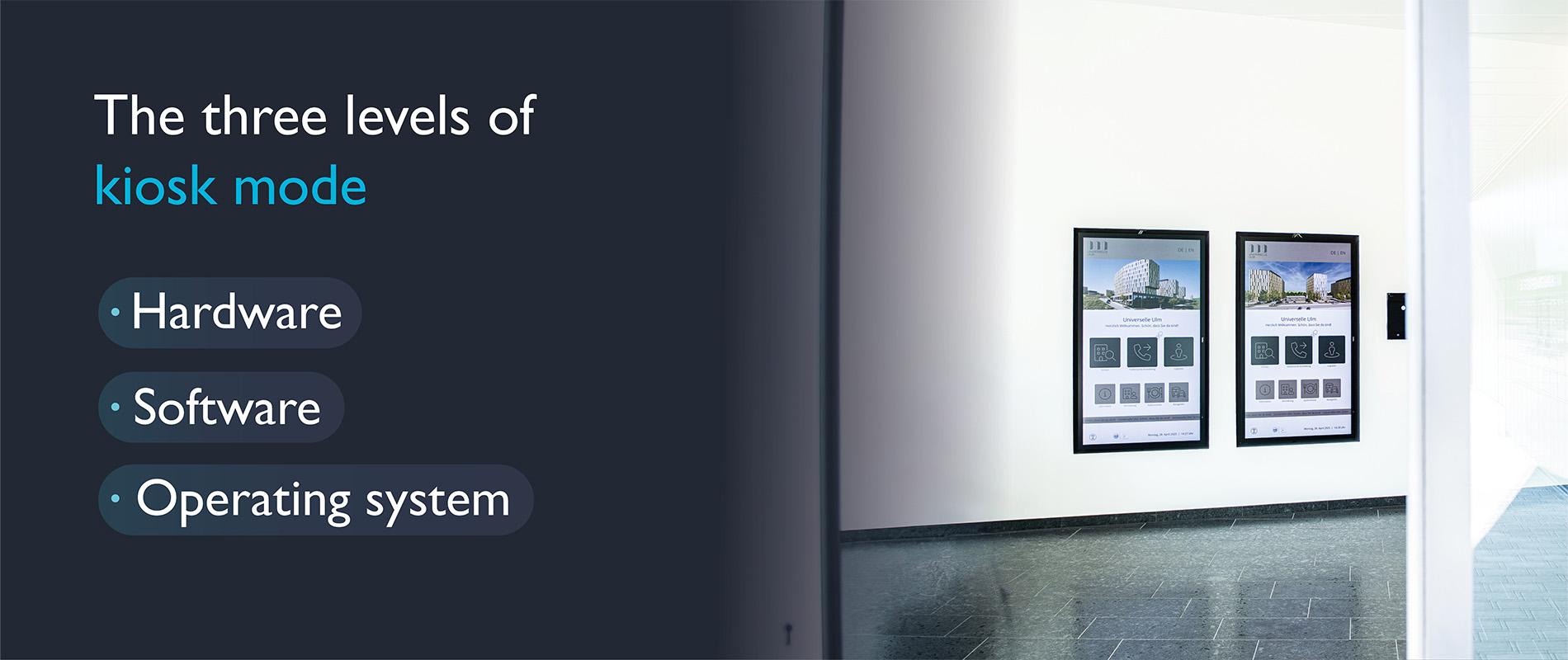
“But we’ve enabled Kiosk Mode – so why is it still insecure?” We’re asked this question time and time again in our support team. The reason for this usually lies in a misunderstanding: Kiosk Mode is often seen as a single setting that you enable once and then forget about. In fact, there’s much more to it than that.
The public screen as a gateway
A kiosk computer differs from a standard workstation in one crucial respect: it is located in a public space. At a digital reception desk, in a waiting area as digital signage, at a self-service terminal or on the shop floor. In theory, anyone passing by can use it – visitors, suppliers, and occasionally even a curious member of staff.
This openness is part of the concept, because that is precisely what the screen is there for: as a reception display, as a guide, and as a terminal for quick self-service access. However, it also carries a risk that a normal office PC does not have. That is why the system must be secured in such a way that nobody can exit the actual application: swipe gestures are disabled, logging out is blocked, and there is simply no way to leave the interface.
Three levels instead of a tick box
What many people don’t realise is that security isn’t just a matter of software. At smartPerform, we always consider all three levels together.
- At the hardware level, the computer is physically protected, for example by being enclosed in a case. In addition, we rely on encryption such as BitLocker to ensure that no data can be read, even if there is physical access to the hard drive.
- At the software level, the application runs in full-screen mode and cannot be exited – there is no access to the desktop or Task Manager.
- The third level, the operating system, is, in our experience, the biggest source of errors. An outdated version of Windows is an open gateway to security breaches, particularly if it is used to browse the internet. Over the course of months, missing updates accumulate to create significant security vulnerabilities.
The password that ruins everything
Even if the hardware, software and operating system are all in order, there is one aspect that is regularly overlooked in practice: passwords. Time and again, we come across TeamViewer accounts with login details that are far too simple. A weak password like this renders even the most sophisticated kiosk mode useless in an instant, as it bypasses all external security measures.
Conclusion
A kiosk computer is only truly secure when all three elements work together: an up-to-date operating system, properly secured access points and physically protected hardware. Whether at reception, in a waiting area or as a self-service terminal, these fundamentals determine whether a public screen offers a good user experience or becomes a risk.




![[object Object]](https://smartperform.de/wp-content/uploads/2024/07/Teaserbild-Webinare-340x255-1.jpg "Teaserbild-Webinare-340x255")
![[object Object]](https://smartperform.de/wp-content/uploads/2024/07/Teaserbild-Dokumente.jpg "Teaserbild-Dokumente")
